Candidate pipeline and talent pools
Move applicants through your pipeline stages, send branded emails at each step, and keep strong-but-not-this-role candidates in talent pools for the next opening.
Two related concepts power the post-application side of Hiring: the pipeline (a candidate's journey through one job) and talent pools (a candidate's place in your future hiring plans).
The pipeline
Every job ships with six default stages: Applied, Phone Screen, Interview, Offer, Hired, Rejected. You can edit, reorder, or add stages on Step 3 of the wizard, but the defaults are sensible for most roles — start there and adjust later.
A candidate sits in exactly one stage at a time. Move them forward by clicking-and-dragging their card on the candidate kanban (ships in Phase 5) or by selecting a new stage from their detail page. Two of the stages are terminal — Hired and Rejected — which means moving a candidate into them ends their journey for this job and triggers any automation bound to that stage.
Automated stage emails
Step 4 of the New Job wizard wires up automated emails per stage. Four system templates ship with every tenant:
- Application Received — fires when a new application lands. Reassures the candidate the team will get back to them.
- Phone Screen Invitation — fires when you move a candidate to Phone Screen. Asks them for time slots.
- Moving Forward — fires when you move a candidate to Interview (or any stage you bind it to).
- Decision: Pass — fires when you reject. Written to be honest and humane, not corporate.
Clone any system template to write your own. Templates support {{candidateName}}, {{jobTitle}}, {{companyName}}, {{stageName}}, and {{interviewTime}} merge tags.
Email scheduling. Each stage email can fire IMMEDIATELY (default) or with a 1-day or 3-day delay. Useful for the Decision: Pass template — many recruiters prefer to add a day of breathing room before sending a rejection so it doesn't feel automated.
Talent pools
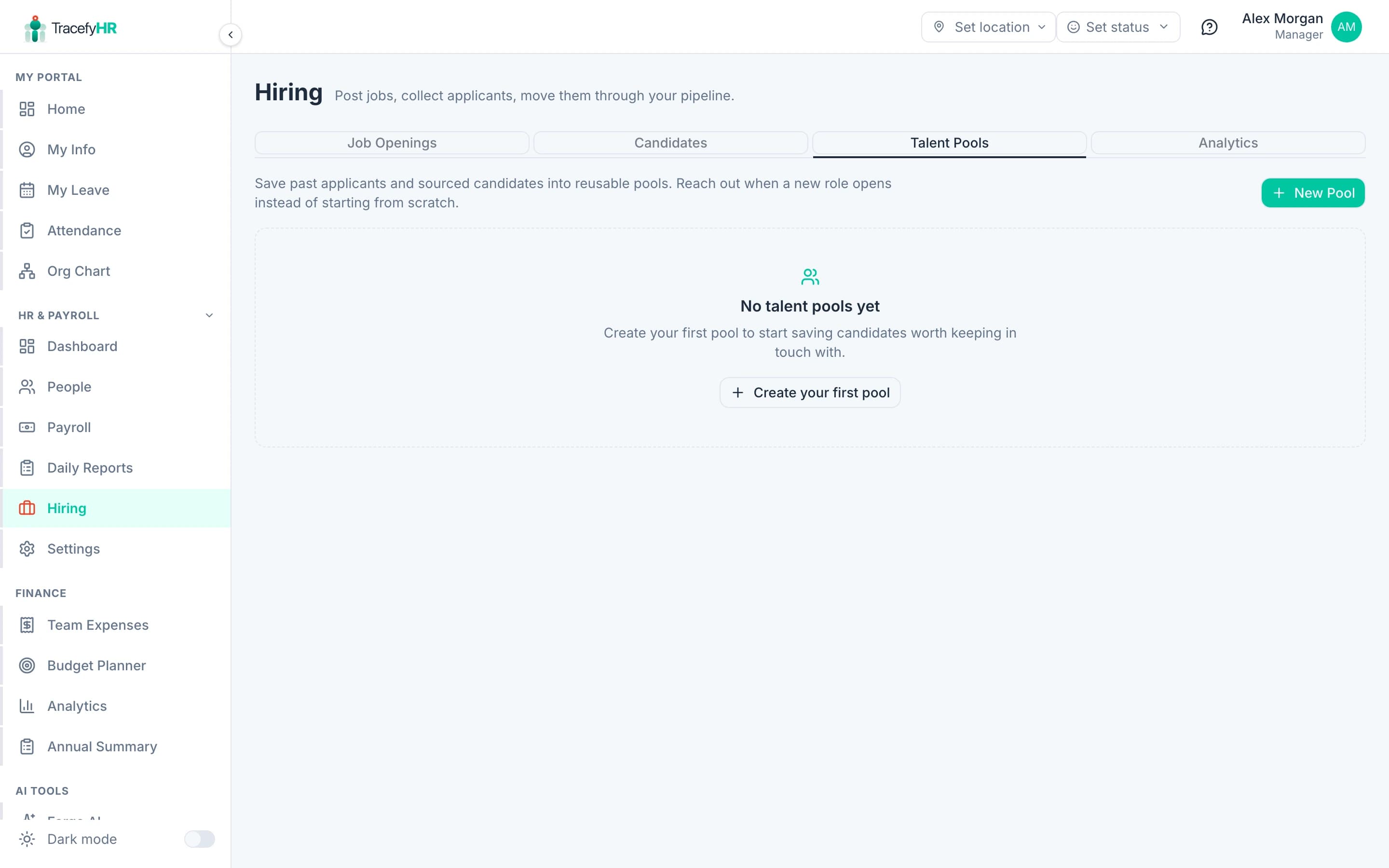
A talent pool is a curated bucket of candidates worth keeping warm for future hiring — past applicants who almost made it, sourced candidates from LinkedIn or referrals, and your top finalists from a closed role.
Why pools matter
For a company hiring 5+ roles a year, the same role keeps reopening — customer support, sales, engineering. The cost of restarting from a blank applicant page each time is real. Pools let you:
- Save the strong-but-not-this-role candidates from a closed job in one click.
- Tag them ("React", "Senior", "EU-only") so search is easy six months later.
- Reach out when the next role opens via your existing email template stack.
Creating a pool
Open the Hiring → Talent Pools tab and click + New Pool.
Give it a name and description. Names are unique within your tenant — "Frontend engineers — past finalists" works better than "Pool 1". The description is for your future self ("strong interviewers we couldn't hire because of timing or budget").
Add tags if you want them. Use commas — "React, Senior, EU-only".
Click Create pool. You're now ready to add members.
Adding members
From inside any pool, click + Add member and fill in the form: full name, email, phone, LinkedIn URL, notes, tags. The form is short on purpose — you can always edit later from the member's row in the pool detail dialog.
Add from a past application (Phase 5). Once Phase 5's candidate management ships, the candidate detail page gets a Save to talent pool dropdown that copies their snapshot into a pool of your choice in one click. Until then, add manually.
What ships in later phases
- Promote a pool member to an active job — Phase 5. Will let you click a member and create a
JobApplicationfrom them in one of your open roles. - Bulk import from CSV / LinkedIn export — Phase 6.
- Saved searches inside a pool — Phase 7.
Related
- Posting a job — wiring up the pipeline + automated emails on Step 3 and 4
- Hiring analytics — funnel + time-to-hire metrics ship with Phase 4
- Share and syndicate jobs — get the role in front of more candidates
Last updated 2026-05-09