The org chart
Visualise reporting lines, mark CEO-level roots, and navigate the chart with mouse, keyboard, or touch — built into the unified portal.
The org chart is your living map of who reports to whom. It's auto-built from the Reports To field on each employee — change a reporting manager, the chart updates instantly. The CEO (and any other top-of-organization roles) sit at the top with no manager attached.
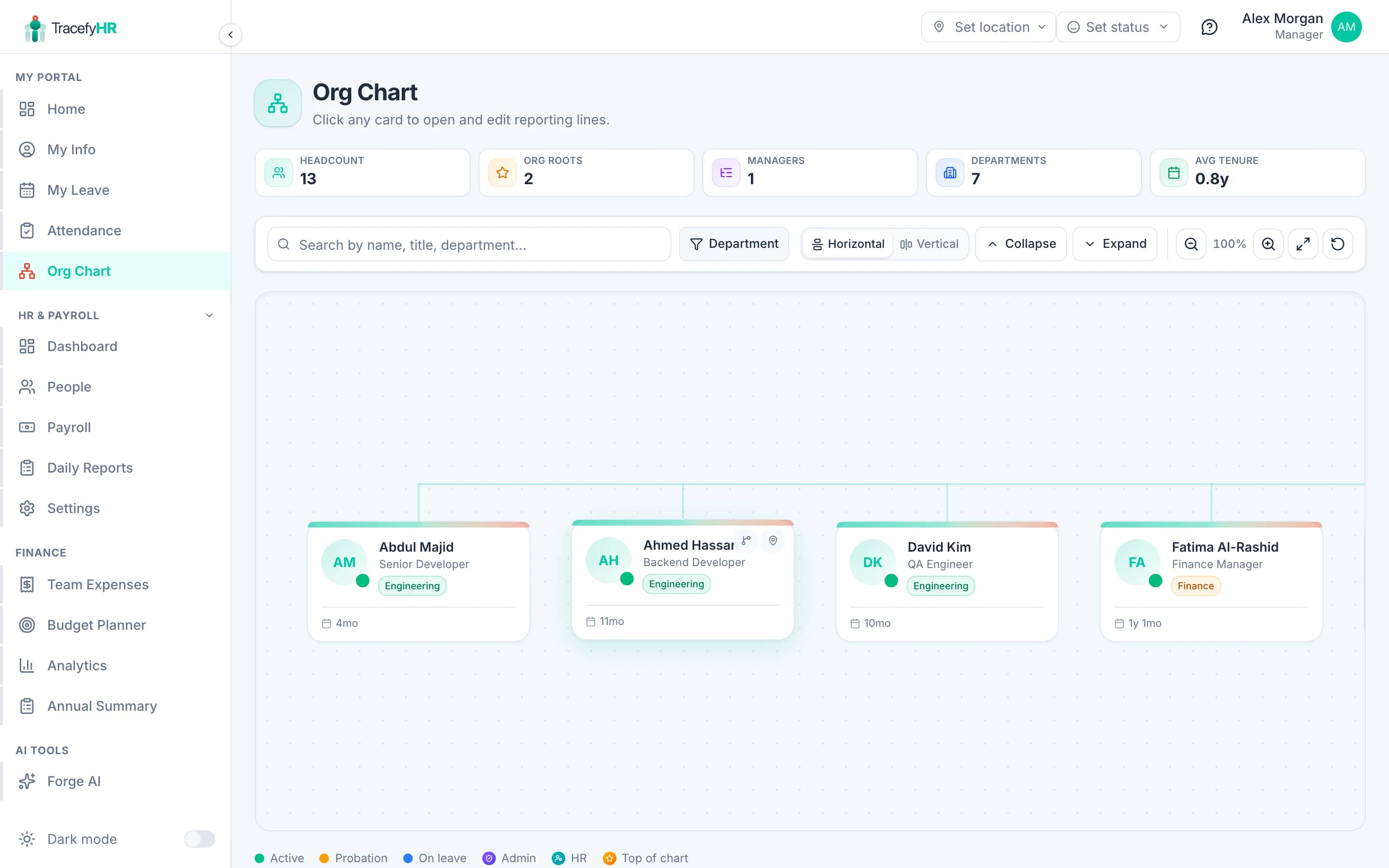
Where to find it
Org Chart in the sidebar. The chart loads with your top-level employees (anyone marked Top of organization) at the top and teams branching downward. A short layout-shaped skeleton renders while data loads, so the canvas never flashes empty.
Navigate the canvas
The chart uses an infinite-canvas viewport. Pan and zoom however suits you:
| Input | Action |
|---|---|
| Click and drag the empty canvas | Pan |
| Mouse wheel | Pan vertically (browser-style) |
| Ctrl + wheel (macOS: Cmd + wheel) | Zoom anchored at the cursor |
| Pinch gesture on a trackpad or phone | Zoom anchored at the midpoint |
| One-finger drag on touch | Pan |
| Two-finger drag on touch | Pan during pinch |
| Buttons in the toolbar | Zoom in / out / reset / fit-to-screen |
Ctrl + wheel zoom only zooms the canvas, never the whole page — that's the same Figma / Miro behaviour you're used to. Safari trackpad pinch is also captured, so the page won't accidentally zoom out from under you.
Find Me, collapse, expand
The toolbar above the canvas has four quick actions:
- Find me — re-frames the chart on your own card. Useful when a large org pushes you off-screen.
- Collapse all — collapses every branch and focuses the first root. The chart re-fits so the top of the org is centred.
- Expand all — reopens every branch and re-fits the entire tree.
- Reset view — back to the default zoom and pan.
Mark someone as the top of the organization
CEOs, founders, and other root-level roles don't have a manager — but they should still appear at the top of the chart. In TracefyHR you mark this explicitly so the system never accuses them of "missing reporting manager":
Open the employee's profile and click Edit.
Switch to the Reporting & Access tab.
Toggle Top of organization on. The Reports To picker disables and any existing value is cleared — root employees don't have managers by definition.
Click Save Changes.
Multiple roots are allowed. Co-founders, holding-company structures, or matrix orgs often have more than one top. TracefyHR auto-marks your first employee as a root on signup; from there you control who's promoted or demoted.
Reorganise the chart
Update the structure from any employee's profile:
Open the employee's profile and click Edit.
Switch to Reporting & Access.
Pick a new manager from the Reports To dropdown (it's a searchable picker — start typing a name).
Click Save Changes.
The chart updates the next time you open it. Changing a reporting manager triggers a notification to the new manager (so they know they have a new direct report) and to the employee.
Departments vs. reporting lines
Two related but separate concepts:
- Department — a tag on an employee (Engineering, Sales, etc.). One department per employee. Used for grouping in payroll, expenses, and analytics.
- Reports To — who they report to. Drives the org chart and approval workflows.
You can have someone in Engineering who reports to a Sales manager — TracefyHR doesn't force department-aligned reporting.
Common questions
Why does an employee not appear? Either they're archived (left the company), or they have no Reports To set and aren't marked as Top of organization. Open their profile, mark them as a root or pick a manager — they'll appear immediately.
Can two people share the same direct reports? No — each employee has exactly one Reports To. For matrix structures (a project lead in addition to a line manager), use Forge AI to build a "Project Assignments" custom feature alongside.
Why is the dashboard saying "X employees missing reporting manager" when my CEO is on top? The smart-notification widget excludes anyone marked Top of organization. If your CEO is still on the list, open their profile → Reporting & Access → toggle Top of organization on.
Can employees see the org chart? Yes by default — it's helpful for new hires. Salary and other sensitive fields are server-side redacted for non-HR viewers.
Related
Last updated 2026-05-05