Adding employees
Add a new employee, send the onboarding email automatically, and use the unified tabbed Edit dialog to manage everything from one place.
Adding someone to TracefyHR triggers an automatic onboarding email — the moment you save, they get a welcome message with a temporary password and a link to log in. You don't need to message them separately.
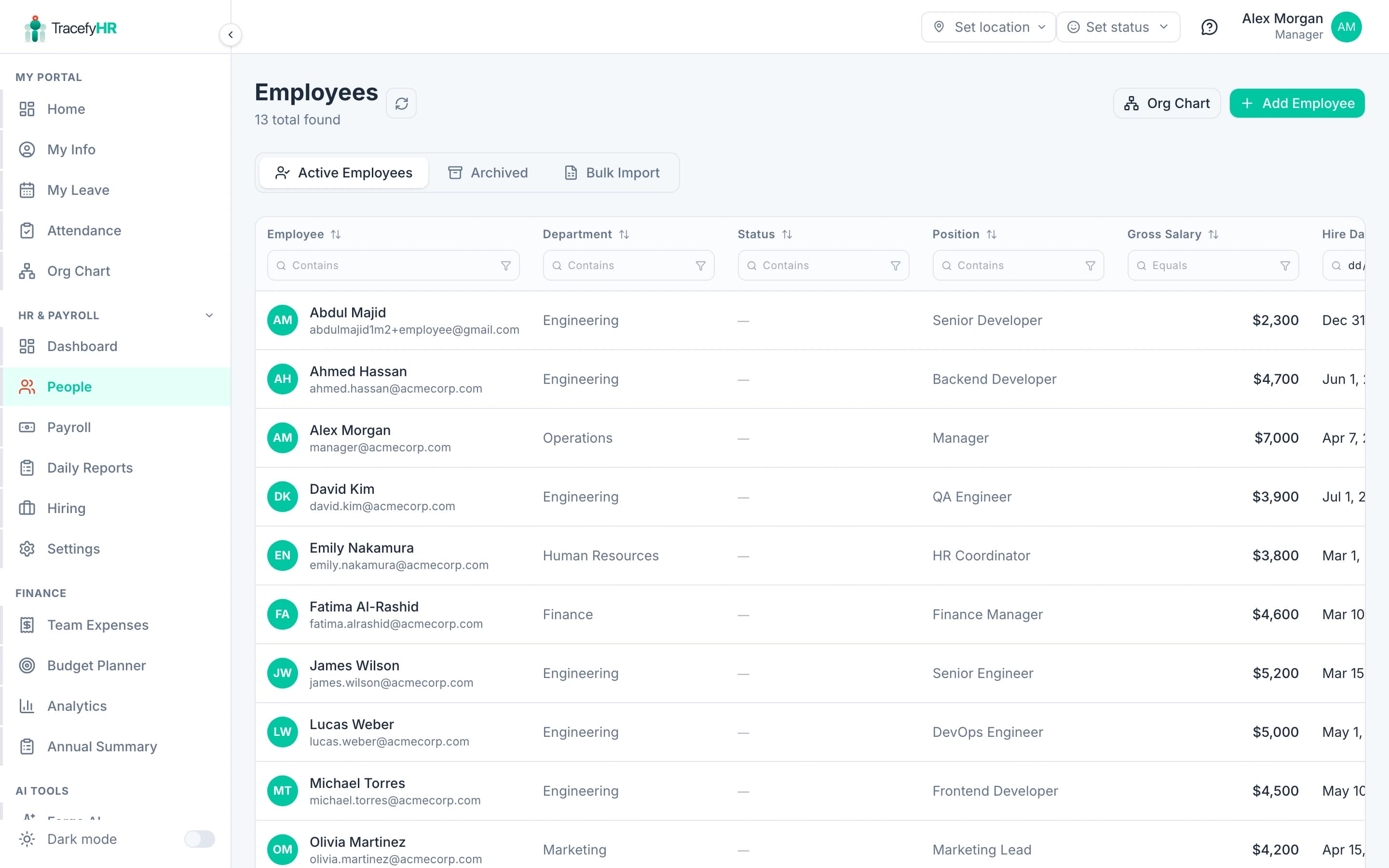
When you click Add Employee, this modal opens:
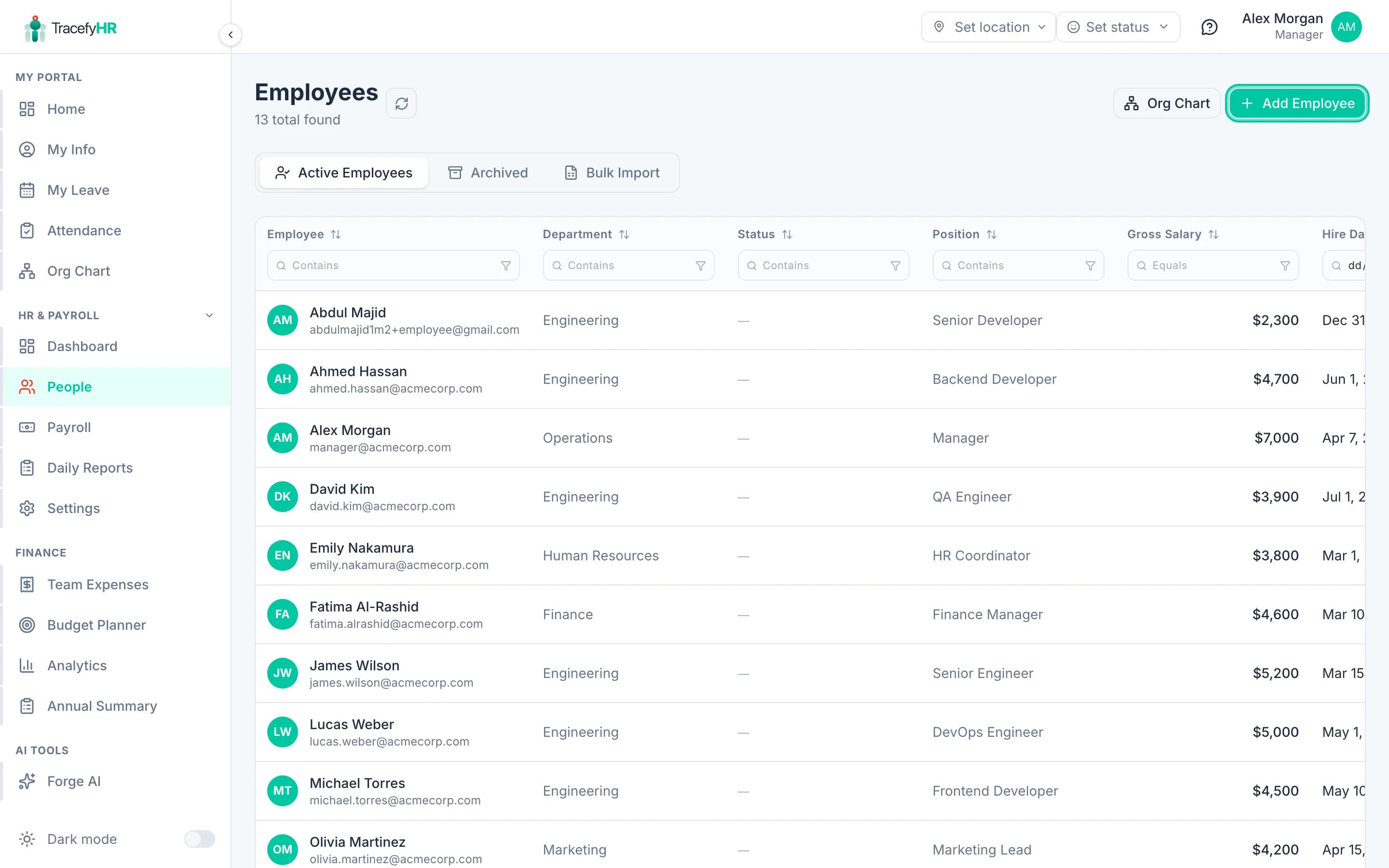
Add an employee
Open People in the sidebar.
Click Add Employee (top right).
Fill in the basics:
- Name (required)
- Work email (required) — this becomes their login
- Salary — base monthly salary in your company's base currency
- Department — pick from the dropdown, or leave blank
- Job title
- Hire date (defaults to today)
- Tax % — overrides the company default for this employee. Leave blank to use the default
Optional but useful:
- Reports To — drives the org chart and notification routing (searchable picker)
- Phone number
- Date of Birth — used by the "Celebrate this week" widget
Click Save. TracefyHR creates their account and emails them a welcome message with their temporary password (valid for 48 hours).
Your first employee is auto-marked as Top of Organization. This is your CEO / founder by default. You can change this later from the employee's Reporting & Access tab — multiple roots are allowed.
Edit an employee — one click, every field
Click any employee in the directory to open their profile, then click Edit. The dialog opens as a tabbed editor so you can update everything in one place — no more closing the modal to upload a document or update a custom field.
Basics tab
Avatar, name, email, department, position, salary, tax %, hire date, status, phone, date of birth, internal notes.
Reporting & Access tab
- Top of organization toggle — mark this person as a root of the org chart (CEO, founder). Root employees don't need a Reports To.
- Reports To — searchable picker that lists every other employee. Disabled and cleared automatically if Top of organization is on.
- Login Access — grant or revoke admin login (HR / Manager), set finance + Forge AI permissions, mark them a leave approver.
Documents tab
- Inline upload form (title + optional note + file).
- A grid of every existing document with download and delete buttons.
- The tab badge shows the count, e.g. Documents · 4.
Custom profile sections
One tab per profile section your company has configured (Personal Info, Education, Skills, Emergency Contact, etc.). Each section saves on its own Save Changes button — no need to commit the whole dialog.
The Save button at the bottom only commits Basics + Reporting & Access changes. Documents and custom-profile tabs auto-save independently, so the button is hidden on those tabs to avoid implying it owns those changes.
What the new employee receives
The onboarding email includes:
- A welcome message with your company logo
- Their email (so they know which one to use)
- A temporary password (good for 48 hours)
- A direct link to your workspace login (apex or tenant subdomain)
- A note that they'll need to set a new password on first login
If they don't see it, ask them to check spam, then resend from their profile (⋯ menu → Resend onboarding email).
Archive vs. permanently delete
Open any employee profile to find:
- Archive — preserves all data but removes them from the active directory and revokes their login. Use this when someone leaves. You can unarchive later if they come back.
- Delete Permanently — only available from the Archived tab. Irreversible — wipes all their data including uploaded documents from cloud storage.
Permanent delete is one-way. Use Archive in 99% of cases. The only reason to permanently delete is a GDPR / right-to-erasure request.
Common questions
The system says "email already in use" but I'm sure no one has it. Check the Archived tab — an old employee with the same email may still hold the slot. Either reactivate them or use a different email.
Can I let an employee log in without sending the welcome email? No — TracefyHR sets the password on the server and only ever shows it once, in the email. There's no UI to copy it.
Can I add someone without a salary? Set salary to 0 if that's truly the case (interns, contractors paid externally). They still get a profile and can use leave, daily reports, and Forge tools.
The dashboard keeps saying "1 employee missing reporting manager" but my CEO obviously doesn't have one. Open their profile → Reporting & Access → toggle Top of organization on. The smart-notification widget excludes anyone marked as a root.
Related
Last updated 2026-05-05