Posting a job
Create a job opening in five short steps — job info, application questions, pipeline, automated emails, and where to publish — then preview exactly what candidates will see.
The Hiring module's wizard creates a job in five short steps. Each step saves as you go, so you can close the tab any time and resume later from the Hiring index — drafts persist forever until you delete them.
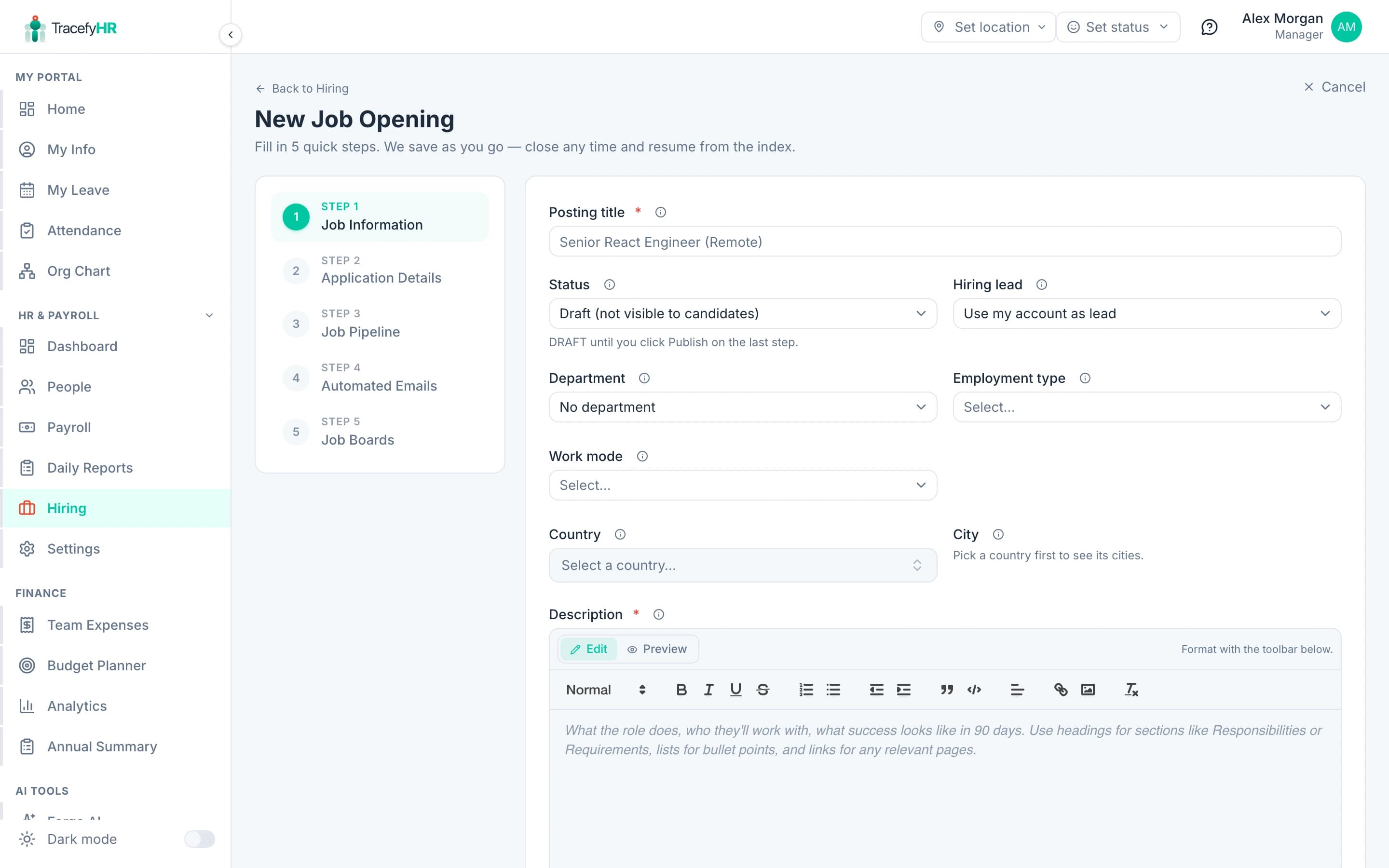
The 5 steps
Click + New Job Opening on the Hiring index. The wizard opens at Step 1.
Fill in the basics. Posting title and description are the only required fields. Department, hiring lead, employment type, work mode, location, and salary range are all optional but make the public listing more useful. Use the rich-text editor on Description — H2/H3 for sections, bullet lists for responsibilities, links for any benefits page. Click Preview in the editor's toolbar to see the rendered output without leaving the form.
Pick application fields and questions on Step 2. Toggle the standard fields candidates fill in (resume, cover letter, phone, address, LinkedIn URL, etc.) and add custom questions where you need them. Custom questions support short answer, long answer, yes/no, multi-choice, checkbox, and file upload.
Adjust the pipeline on Step 3. Six default stages ship with every job — Applied, Phone Screen, Interview, Offer, Hired, Rejected — and you can add, rename, or remove any of them before there are candidates in them.
Wire up automated emails on Step 4. For each stage in the pipeline, optionally bind an email template that fires when a candidate moves into that stage. Four system templates ship with every tenant (Application Received, Phone Screen Invitation, Moving Forward, Decision: Pass) — clone any of them to start your own.
Pick where to publish on Step 5. Your careers page is on by default. Google for Jobs (free) is on by default. Indeed and LinkedIn ship in Phase 8.
The sticky stepper
The numbered list on the left of the wizard is sticky — it follows you down the page so you always know which step you're on. On mobile it collapses into a compact horizontal pill row at the top. Click any step you've already visited to jump back; future steps stay disabled until the current one saves successfully.
Country and city dropdowns
The location fields are a cascading Country → State → City picker. Pick a country, the state list narrows to that country's regions; pick a state, the city list narrows. Countries that don't really use a state list (UAE, Singapore, Kuwait) hide the State row entirely and let you pick straight from a city dropdown.
Required when relevant. If Work Mode is Remote, country and city are optional. If it's Hybrid or On-site, they're required and the form blocks Save until you pick. The asterisks light up automatically.
Saving and resuming
The wizard saves every step you finish. Click Save & finish later at the bottom of any step to persist your progress and bounce back to the Hiring index. The job appears in the list as a DRAFT until you finish Step 5 and click Publish opening.
What happens when you click Publish
Five things, in order:
- The job's status flips from
DRAFTtoOPEN. publishedAtis stamped to now (this is what readers see as the post date — notcreatedAt).- The careers page at
tracefyhr.com/careers/{slug}becomes reachable. - Google for Jobs picks up the JSON-LD
JobPostingstructured data on the next crawl. - The IndexNow ping fires (Bing + Yandex) for fast indexing.
Previewing the public job page
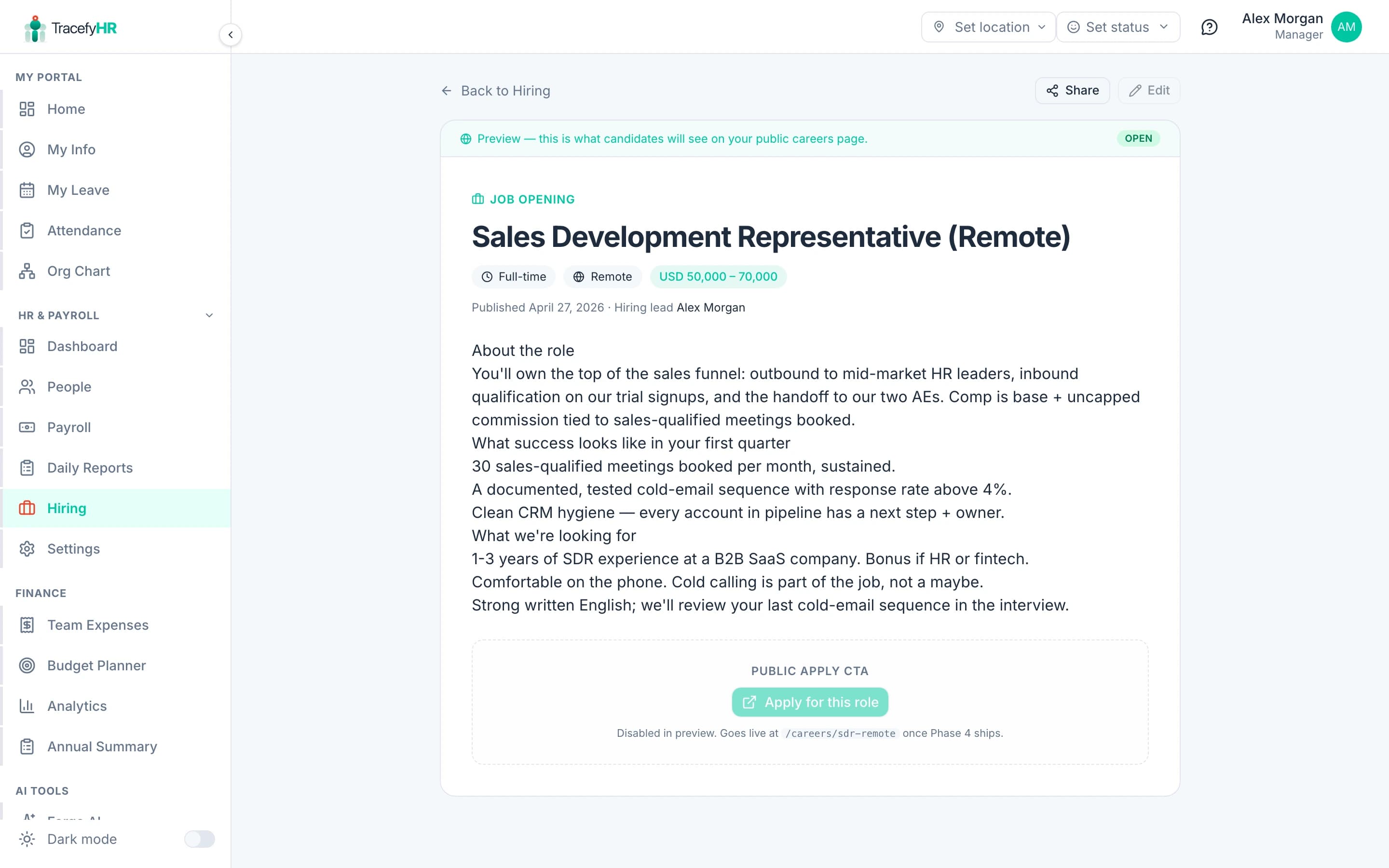
After saving, click any job row on the Hiring index to open the public-style preview. This is exactly what candidates see when the careers page is live, just inside your portal — same layout, same metadata, same Apply CTA (disabled in preview mode).
What ships in later phases
- Editing existing jobs — Phase 5. For now you can publish + close, but to change the body text you delete the draft and re-create. (Closed jobs are read-only.)
- Public careers page — Phase 4. The route exists but returns 404 until that ships.
- Public apply form — Phase 4. Until that lives, you'll only see candidates that you add manually for testing.
Related
- Share and syndicate jobs — LinkedIn / X / Facebook / WhatsApp without OAuth
- Candidate pipeline and pools — moving applicants through stages
- Hiring analytics — what's working, what's stuck
Last updated 2026-05-09